Most companies spend thousands of dollars protecting their CRM from external threats — firewalls, encryption, two-factor authentication — while leaving the front door wide open from the inside. A sales rep exports the full customer database before resigning. A marketing intern accidentally overwrites a key account’s contact history. A manager sees deal data from a territory that isn’t theirs.
CRM data access control is the set of rules that determines who can see, edit, create, and delete data inside your CRM — and under what conditions. It’s not a feature you configure once and forget. It’s an operational layer that directly impacts data integrity, team performance, and regulatory compliance.
In 2026, with CRMs centralizing more business-critical data than ever — deals, contracts, customer communications, payment history — getting access control right is no longer optional. This guide covers the models you need to understand, how to implement them based on your org structure, and the most common mistakes that create real exposure.
Why Poor Access Control Is a Bigger Risk Than External Attacks
Cybersecurity budgets grow every year, yet the most damaging CRM incidents rarely come from outside the organization. According to the Verizon Data Breach Investigations Report, insider threats — whether malicious or accidental — account for a significant portion of data breaches across industries. In CRM environments specifically, the attack surface isn’t a vulnerability in the software. It’s a user with too much access.
The problem is structural. CRMs are designed to centralize customer data and make it accessible. That’s their value. But without proper controls, that accessibility becomes a liability.
The three insider risk profiles you need to plan for
1. The departing employee. A sales rep leaving for a competitor downloads the full contact list, deal history, and account notes before their last day. No malware involved — they simply had export permissions they never needed in their day-to-day role.
2. The accidental overwrite. A junior team member with edit access updates the wrong account record, changes a deal stage, or deletes a contact while cleaning up duplicates. No bad intent — just excessive permissions meeting human error.
3. The over-privileged role. An entire department has admin-level access because it was easier to set up that way during implementation. Over time, nobody audits it. Data spreads across roles that have no business reason to see it.
Why this is harder to detect than an external breach
External attacks trigger alerts — failed login attempts, unusual IP addresses, known malware signatures. Internal misuse looks like normal activity. A rep accessing 400 records before their resignation date looks identical to a rep doing legitimate research. Without access logging and behavioral baselines, you won’t know until the damage is done.
The cost isn’t just data loss. In regulated industries, a GDPR or CCPA audit that reveals employees had access to data beyond their job function can result in significant fines and reputational damage — regardless of whether that access was ever exploited.
The conclusion is straightforward: the principle of least privilege — giving users access only to the data they need to do their job — is the single most effective control you can implement in your CRM. Everything else in this guide is built on that foundation.
Role-Based vs Attribute-Based Access Control: Which Model Fits Your CRM
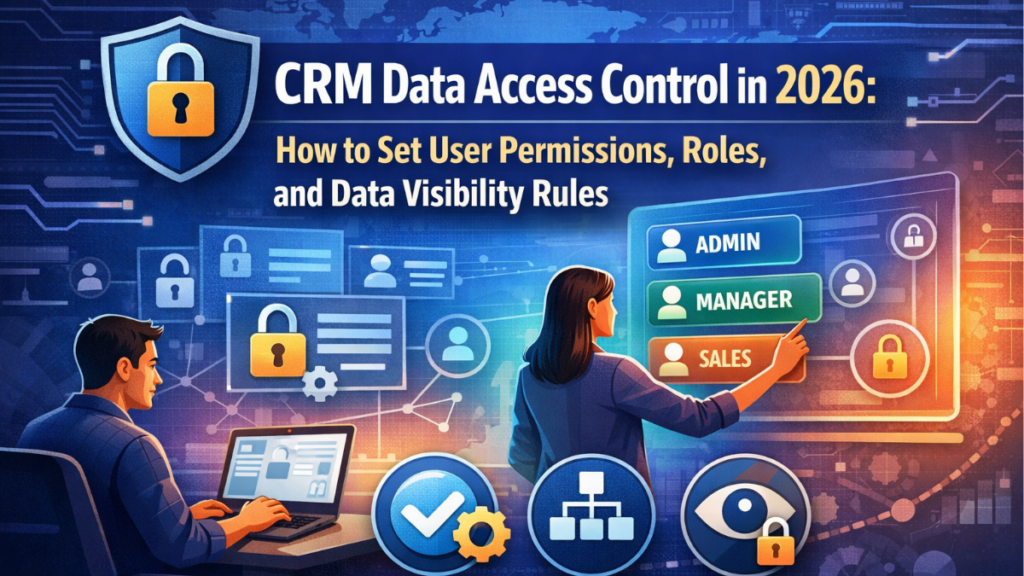
Before configuring a single permission in your CRM, you need to decide which access control model governs your system. The two dominant models — Role-Based Access Control (RBAC) and Attribute-Based Access Control (ABAC) — solve different problems and have different implementation costs. Choosing the wrong one creates either gaps in security or an administrative nightmare.
Role-Based Access Control (RBAC)
RBAC assigns permissions to roles, and users inherit those permissions by being assigned to a role. A «Sales Rep» role can view and edit their own deals. A «Sales Manager» role can view all deals in their team. An «Admin» role can configure the system.
How it works in practice: you define a fixed set of roles that map to job functions, configure what each role can do, and assign users to roles. When someone changes position, you change their role — permissions follow automatically.
Best for: companies with clear, stable org structures where job function determines data needs. Most small and mid-sized businesses operate well with RBAC. It’s easier to implement, audit, and explain to non-technical stakeholders.
Limitation: RBAC struggles with exceptions. If a sales rep needs temporary access to an account outside their territory, you either create a new role, modify the existing one, or grant individual permissions — all of which introduce complexity over time.
Attribute-Based Access Control (ABAC)
ABAC grants access based on a combination of attributes — properties of the user, the data, and the context of the request. Instead of «Sales Reps can see their own deals,» the rule becomes: «Users can see records where the account region matches their assigned region AND the deal value is below their approval threshold AND they are logged in from a company device.»
How it works in practice: you define policies using logical conditions. Access decisions are made dynamically at the moment of the request based on current attribute values — not static role assignments.
Best for: large enterprises with complex data segmentation needs — multiple territories, product lines, partner tiers, or regulatory jurisdictions. Also essential when compliance requires demonstrating that access was contextually appropriate, not just role-appropriate.
Limitation: ABAC is significantly more complex to design, implement, and audit. Poorly written policies create unintended access gaps or over-restrictions that are hard to trace.
Which model should you choose
The decision comes down to two questions:
- How dynamic is your access logic? If the same job title always needs the same data, RBAC is sufficient. If access depends on territory, deal size, customer tier, or time of day, you need ABAC — or a hybrid.
- What is your administrative capacity? ABAC requires ongoing policy management. If your team can’t maintain it consistently, a well-structured RBAC implementation is more secure in practice than a poorly maintained ABAC system.
Most CRM platforms — including Salesforce, HubSpot, and Microsoft Dynamics — implement a hybrid model by default: roles define a baseline of permissions, and additional rules based on record ownership, territory, or team membership layer on top. Understanding both models helps you use that hybrid system intentionally instead of by accident.
How to Map Your Org Structure to CRM Roles and Data Visibility
The most common access control failure isn’t a technical misconfiguration — it’s a mismatch between how the organization actually operates and how permissions are set up in the CRM. Roles get created during implementation to meet an immediate need, and six months later nobody remembers why «Sales Rep Level 2» exists or what makes it different from «Sales Rep Level 1.»
Mapping your org structure to CRM roles requires a deliberate process. Here’s how to do it correctly.
Step 1: Start with job functions, not job titles
Job titles vary across companies and change over time. Job functions — the actual actions a person performs in the CRM — are more stable. Before creating a single role, answer these questions for each team:
- What objects do they work with? (Contacts, deals, accounts, tickets, reports)
- What actions do they need? (View, create, edit, delete, export)
- What scope of data do they need? (Only their own records, their team’s records, all records)
A field sales rep needs to create and edit their own contacts and deals, view account history, and log activities. They don’t need to export data, access other reps’ pipelines, or modify system settings. That function definition becomes the blueprint for their role.
Step 2: Define data visibility boundaries
Data visibility determines which records a user can see — independent of what they can do with them. The three standard visibility models in most CRMs are:
- Private: users only see records they own or are explicitly shared with them.
- Team: users see all records owned by members of their team or reporting hierarchy.
- Organization-wide: all users see all records, regardless of ownership.
The right model depends on your sales motion. Territory-based sales teams typically use private or team visibility — a rep in the Northeast has no operational reason to see deals from the Southwest. Account-based selling teams often need broader visibility because multiple roles collaborate on the same account. Define visibility per object, not per system — your deals might be private while your accounts are organization-wide.
Step 3: Build your role hierarchy
Most CRMs implement role-based visibility through a hierarchy: users in higher roles inherit visibility over records owned by users below them. A Sales Manager sees everything their reps see. A VP of Sales sees everything the managers see.
Map this hierarchy before configuring it in the system:
- Identify every team that uses the CRM and their reporting lines.
- Assign each team a role with defined permissions and visibility scope.
- Confirm that managers only see the teams they actually manage — a common mistake is giving all managers organization-wide visibility by default.
Step 4: Handle exceptions without creating role sprawl
Real organizations have edge cases. A sales rep who also manages a strategic account. A marketing manager who needs read-only access to deal data for campaign targeting. A consultant with temporary access during an implementation project.
The wrong approach is creating a new role for every exception. This leads to role sprawl — dozens of roles that overlap, conflict, and become impossible to audit. The right approach depends on your CRM:
- Use record sharing rules to grant access to specific records without changing the user’s base role.
- Use permission sets (available in Salesforce and similar platforms) to add specific capabilities on top of a base role without creating a new role.
- Use time-limited access for contractors and temporary collaborators, with a defined expiration date.
Step 5: Document every role before you configure it
Before touching the CRM, create a simple reference document that defines each role: its name, the job functions it covers, the objects it can access, the actions permitted on each object, and the visibility scope. This documentation serves two purposes — it forces clarity during design, and it becomes your audit reference when permissions need to be reviewed six months later.
A CRM with 6 well-documented roles is significantly more secure and manageable than one with 24 roles that accumulated organically over time.
Audit Logs and Access Tracking: How to Know Who Touched What
Access control defines what users are allowed to do. Audit logs tell you what they actually did. Without both layers working together, you have a policy without enforcement visibility — you’re trusting that permissions are being used appropriately with no way to verify it.
In a CRM context, audit logging is the systematic recording of every significant action performed on your data: who accessed a record, what they changed, when, and from where. It’s the operational backbone of both internal security and regulatory compliance.
What a CRM audit log should capture
Not all CRM platforms log the same events. When evaluating or configuring your audit capabilities, these are the events that matter:
- Record access: when a user views a record, even if they make no changes. Critical for detecting reconnaissance behavior before a data exfiltration attempt.
- Field-level changes: which specific fields were modified, the previous value, the new value, and the timestamp. «Deal stage changed from Negotiation to Closed Lost by user X at 11:47pm» is actionable. «Record updated» is not.
- Data exports: any time a user exports records to CSV, Excel, or via API. This is the highest-risk action in most CRM environments and should trigger an automatic alert above a defined threshold.
- Login events: successful logins, failed attempts, logins from new devices or unusual locations.
- Permission changes: when a user’s role is modified, when sharing rules are updated, when new users are added or deactivated.
- Record deletion: who deleted what and when. Some platforms move deleted records to a recycle bin with retention — confirm this is enabled.
How to use audit logs operationally
Audit logs only create value if someone reviews them. Raw logs are voluminous and impractical to monitor manually. The operational approach is to define specific behaviors that warrant investigation and build alerts or periodic reviews around them:
- A user accesses more than X records in a single session outside business hours.
- A user exports more than X records in a single day — especially in the weeks preceding their resignation date.
- A user accesses records outside their assigned territory or account list.
- Multiple failed login attempts followed by a successful login from a new location.
- A permission change granting elevated access without a corresponding support ticket or approval record.
These thresholds should be defined based on your baseline — what normal usage looks like for each role. A sales manager accessing 200 records in a day may be normal. A junior rep doing the same is an anomaly worth investigating.
Audit logs and compliance
For companies operating under GDPR, CCPA, HIPAA, or SOC 2, audit logs are not optional. Regulators expect you to demonstrate not just that access policies exist, but that you can prove who accessed what personal data and when. In a GDPR audit, the question isn’t only «do you have a privacy policy?» — it’s «can you show me every access event for this customer’s record over the past 12 months?»
Key compliance requirements for audit log management:
- Retention period: most frameworks require logs to be retained for a minimum of 12 months, with some requiring up to 7 years. Confirm your CRM’s default retention and extend it if necessary.
- Tamper-evidence: logs must be stored in a way that prevents modification. If your CRM allows admins to delete log entries, that’s a compliance gap.
- Exportability: you need to be able to extract logs for external review during an audit without depending on real-time access to the CRM interface.
What to do when your CRM’s native logging isn’t enough
Not all CRM platforms offer field-level logging, record-access tracking, or long-term log retention in their standard plans. If your current platform has gaps, you have two options:
- Upgrade to an enterprise tier that includes advanced audit features — Salesforce Shield, for example, adds field history tracking and event monitoring beyond what the standard platform captures.
- Integrate a third-party SIEM (Security Information and Event Management) tool that ingests your CRM’s API activity logs and applies monitoring rules externally. This is common in regulated industries where CRM logs need to be consolidated with broader IT security monitoring.
The minimum viable audit setup for any business is: field-level change history, export tracking, login events, and a defined review process. Everything beyond that scales with your compliance requirements and risk profile.
The 5 most common permission mistakes (and how to fix them)
Most CRM access problems do not come from advanced external threats. They come from permission mistakes made inside the system: users with too much access, sensitive fields left visible, shared admin credentials, unreviewed legacy roles, or no record of who changed what. Salesforce’s security guidance strongly recommends the principle of least privilege, while Microsoft and HubSpot both provide role, team, and field-level controls that are meant to limit access more precisely. The problem is that many businesses never configure those controls deeply enough.
1. Giving users broader access than their job actually requires
The most common mistake is simple over-permissioning. Users are often given full record visibility, broad edit rights, or admin-level powers just to avoid setup friction. This increases the chance of accidental changes, unnecessary data exposure, and internal misuse. The fix is to design access around actual responsibilities, not convenience: start with the minimum access needed, then add permissions only where the task truly requires them. Salesforce explicitly recommends modular, least-privilege access design, and HubSpot allows record access to be limited to owned records or team-owned records instead of everything by default.
2. Using role settings without restricting record visibility properly
Another frequent problem is assuming that assigning users to roles or teams automatically creates safe data boundaries. In reality, role structure and record visibility need to be configured together. A user may belong to the right department but still see too many contacts, deals, or tickets if ownership rules, sharing settings, or team-based access are too broad. HubSpot documents that CRM records can be restricted to the user, their team, or everyone, and Salesforce also separates broader sharing logic from field-level and permission-set controls. The fix is to review record access settings independently instead of assuming the org chart alone will protect data.
3. Forgetting field-level security for sensitive CRM data
Many companies protect records at the object level but forget that some individual fields inside those records are far more sensitive than others. Revenue fields, commission data, personal contact details, internal notes, and regulated identifiers often remain visible simply because no one enabled field-level security. Microsoft documents field-level security through security profiles, and Salesforce also emphasizes field-level access as a distinct control layer. The fix is to identify high-risk fields and explicitly restrict who can read, create, or update them instead of treating every field in a record the same way.
4. Letting integrations and service accounts keep excessive permissions
Integrations are often configured once and then forgotten, even though they may hold very broad access for years. That creates unnecessary exposure if an API account is misused, a sync app behaves incorrectly, or a token is compromised. Salesforce has introduced a minimum-access profile specifically for API-only integrations, which reflects a broader best practice: service accounts should have the narrowest permissions possible and should not inherit the same rights as human administrators. The fix is to isolate integration users, limit their scope, and review them regularly like any other privileged account.
5. Never auditing old permissions after the CRM evolves
CRM permissions tend to expand over time. New teams are added, workflows change, temporary access becomes permanent, and departed users leave behind outdated role structures. Without regular review, the permission model slowly stops matching the business. Microsoft’s role-based security model and HubSpot’s user-and-team controls both assume ongoing administration, not one-time setup. The fix is to run periodic access reviews, remove stale permissions, confirm team ownership rules still make sense, and check whether old access grants still map to real business responsibilities.
The pattern behind all five mistakes
These permission problems usually come from the same root issue: businesses treat CRM access as a one-time admin task instead of a living control system. The most effective fix is not adding more restrictions everywhere, but building a cleaner model based on least privilege, team-aware visibility, field-level protection, limited integration access, and regular audits. That approach protects sensitive CRM data without making everyday work harder than it needs to be.
Best CRM platforms for granular access control in 2026
When a business needs granular access control, the best CRM is usually the one that can combine multiple layers of restriction at the same time: role-based access, record-level visibility, field-level security, and clear admin tools for ongoing permission management. In 2026, the strongest platforms in this area are Salesforce, Microsoft Dynamics 365, HubSpot, and Zoho CRM, but they do not all offer the same depth or flexibility.
Salesforce: best for the deepest access-control architecture
Salesforce remains the strongest option for organizations that need the most detailed permission model. Its access architecture combines profiles, permission sets, permission set groups, organization-wide defaults, sharing rules, role hierarchy, and field-level security. Salesforce’s own architecture guidance explicitly separates record access from field access, which is one of the reasons it scales well for businesses with complex org structures, sensitive data categories, and multiple teams that should not all see the same records or fields.
Microsoft Dynamics 365: best for structured enterprise security models
Microsoft Dynamics 365 is a strong choice for companies that want access control tied closely to enterprise structure. Its model is built around security roles, table-level permissions, business-unit logic, and field-level security profiles. Microsoft’s documentation describes role-based security as a hierarchy of roles, duties, privileges, and permissions, and also documents column- or field-level security for sensitive data. That makes Dynamics 365 especially strong in environments where access must align with formal departments, operational units, and controlled business processes.
HubSpot: best for practical team-based visibility in mid-market CRM setups
HubSpot has become a much stronger option for access control than many businesses assume. Its official permissions guidance shows that admins can control what users can view, create, edit, or delete, restrict access by ownership and team, and limit edit access to specific properties. HubSpot is not as architecturally deep as Salesforce for highly customized enterprise permission design, but it is very effective for companies that want clean, understandable controls without a heavy security-administration burden.
Zoho CRM: best for businesses that need strong sharing control without enterprise complexity
Zoho CRM offers a solid access model built around roles, profiles, and data sharing settings. Zoho’s documentation shows that organizations can define default access levels such as private, public read-only, public read/write, and public read/write/delete, and then extend access through sharing rules. That makes it a practical option for businesses that want meaningful control over record visibility and user permissions without adopting a heavier enterprise CRM stack.
Which platforms lead in 2026
If the goal is maximum granularity and layered security design, Salesforce is the strongest platform in this group. If the priority is enterprise-grade security tied to structured business units and formal role models, Dynamics 365 is a close contender. If the business wants simpler but still effective team-based visibility and property-level restrictions, HubSpot is a very strong mid-market choice. If the need is solid sharing and role control with less complexity, Zoho CRM remains a strong practical option. The best platform depends less on brand and more on how much precision your organization actually needs in user permissions, record visibility, and field-level access.
Written by Ana Moedano Rivera